See Screbly in Action
Experience the intuitive floating toolbar and powerful annotation capabilities
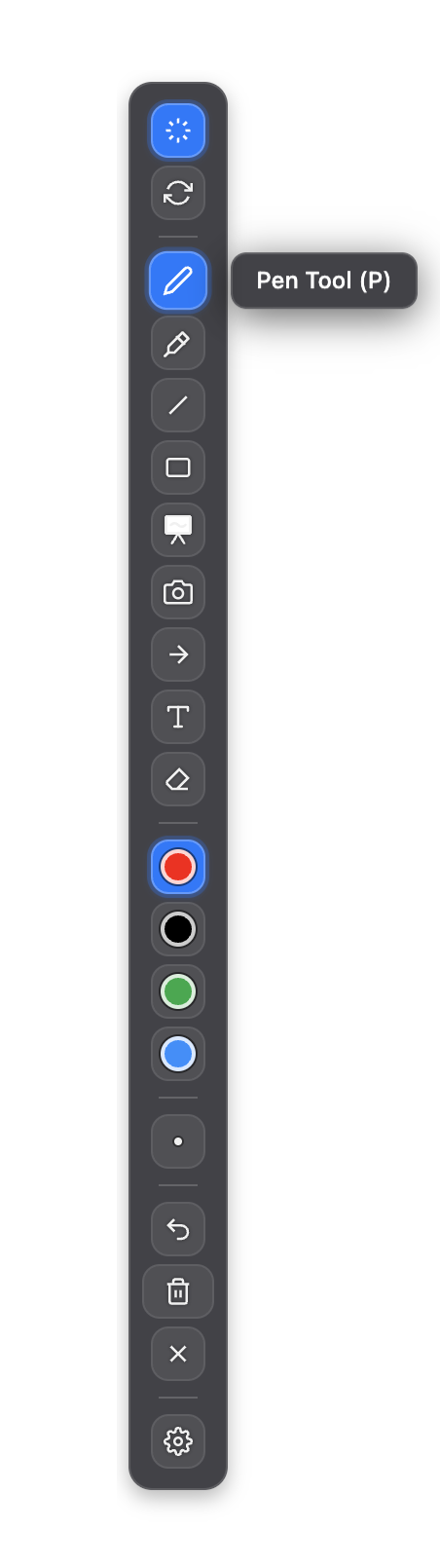
Vertical Floating Toolbar
Always-accessible vertical toolbar that stays on top of all applications. Drag anywhere on your screen and access all tools instantly.

Horizontal Layout Mode
Switch to horizontal layout with the R key. Perfect for widescreen displays and different workflow preferences.
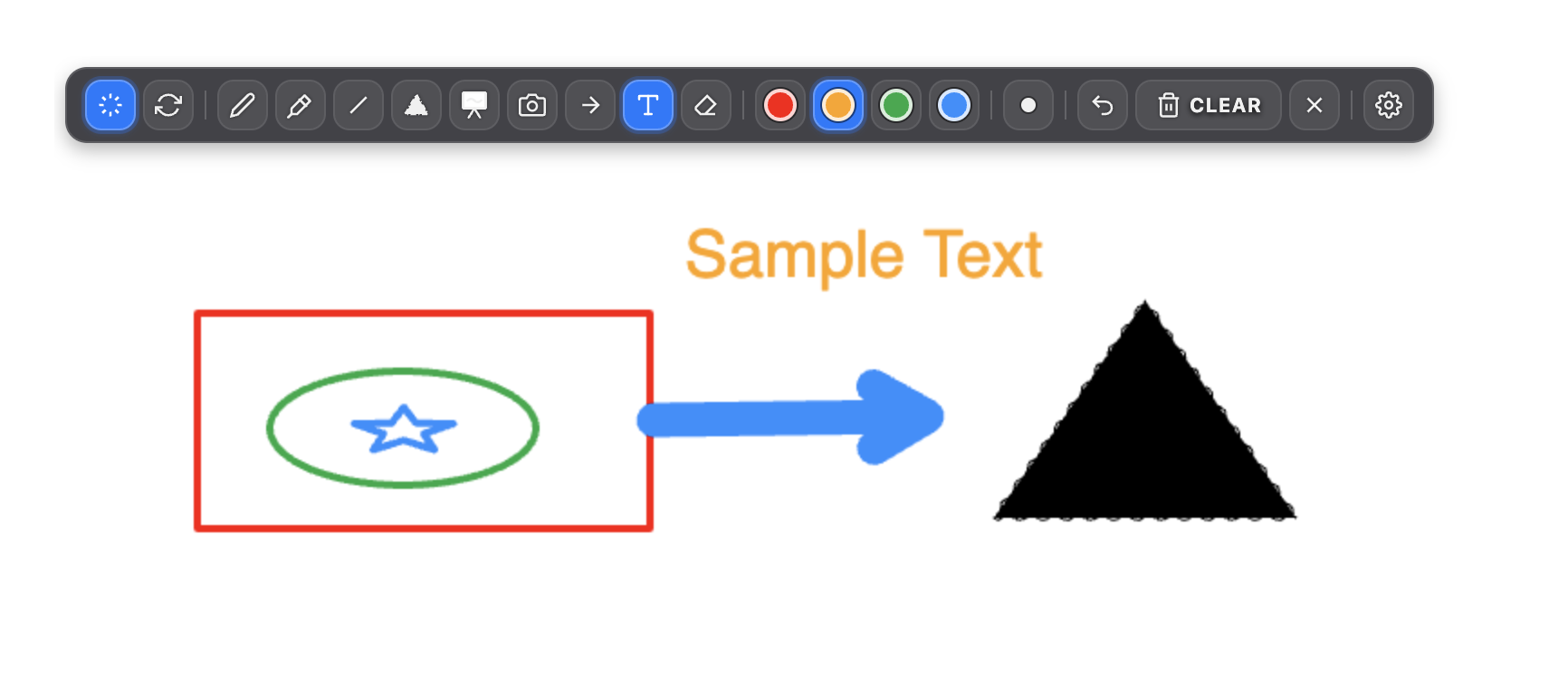
Screen Annotation in Action
Annotate directly over any application. Draw circles, arrows, text, and highlights without disrupting your workflow.
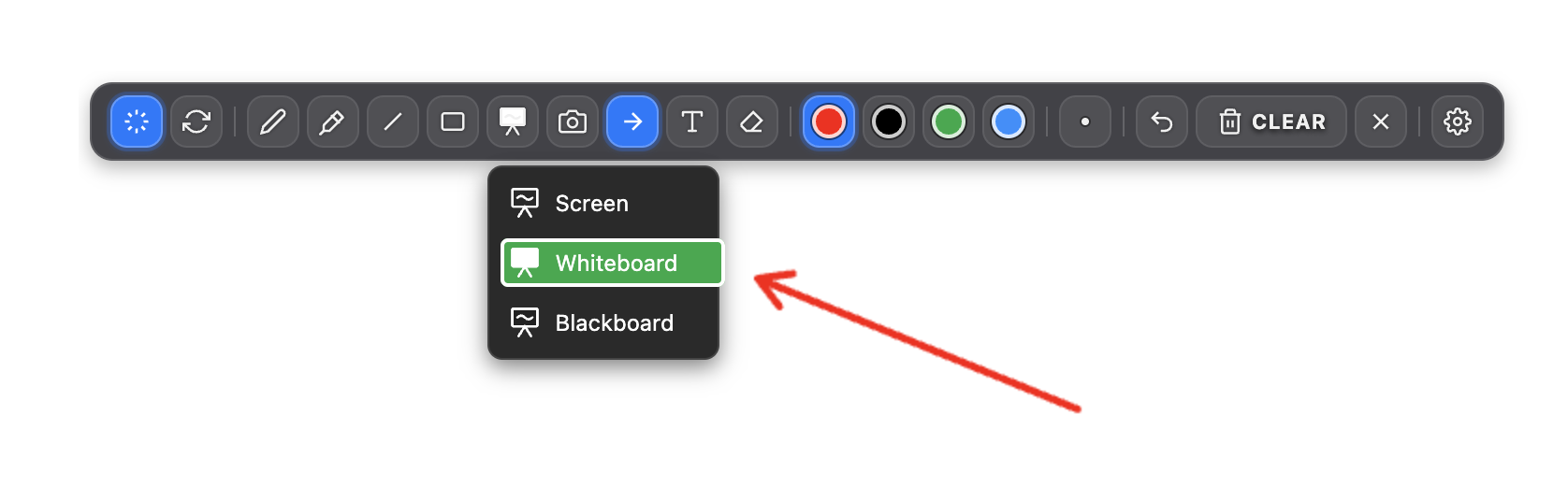
Multiple Board Modes
Toggle between transparent overlay, whiteboard, and blackboard modes with the W key. Perfect for different presentation styles.
Powerful Features
Floating Toolbar
Always-accessible toolbar that stays on top. Drag anywhere on your screen and switch between horizontal or vertical layout with the R key.
Drawing Arsenal
Complete set of annotation tools including Pen, Highlighter, Line, Shapes (Rectangle/Circle), Arrow, and Text tools for every use case.
Board Modes
Toggle between transparent screen overlay, Whiteboard, and Blackboard modes with the W key. Perfect for presentations and brainstorming.
Smart Memory
Automatically remembers your custom color palettes and stroke sizes, so your preferred settings are always ready when you need them.
Screenshot Tool
Capture your annotations alongside screen content with Shift+S. Perfect for saving your work or sharing annotated screenshots.
Instant Access
Launch instantly and start annotating immediately. No complex setup or configuration required - just install and go.
Comprehensive Toolset
Pen Tool (P)
Freehand drawing with customizable stroke width and colors
Highlighter
Semi-transparent highlighting for emphasis
Line Tool
Draw straight lines with precision
Shape Tool (S)
Create rectangles and circles quickly
Arrow Tool
Point and direct attention with arrows
Text Tool (T)
Add text annotations anywhere on screen
Installation & Setup
Get started with Screbly in just a few simple steps:
Download & Install
Download Screbly for your operating system and run the installer. The application will be ready to use immediately after installation.
Launch Screbly
Open Screbly from your Applications folder. The floating toolbar will appear, ready for you to start annotating your screen.
Grant Screen Recording Permission (macOS)
Choose Your Plan
Flexible pricing options designed for individuals and organizations
Basic
$0/month
Perfect for getting started with basic annotation needs
- Basic drawing tools
- Floating toolbar
- Simple shapes
- Limited color palette
- Standard screenshot
Full Feature
$9/month
$8/month (billed yearly)
Complete annotation suite for individual users
- All annotation tools
- Advanced drawing arsenal
- Multiple board modes
- Custom color palettes
- Smart memory settings
- Enhanced screenshot tools
- Keyboard shortcuts
- Priority support
Local pricing available.
Enterprise
Custompricing
Tailored solutions for organizations and institutions
- Everything in Full Feature
- Multiple user licenses
- Advanced admin controls
- Custom integrations
- Dedicated support
- Training & onboarding
- Custom branding options
- Volume discounts
Perfect for teams of 10+ users
Download Screbly Free
Install the free version now. Enter a Pro license key in the app later to unlock all features.